Introduction: The Importance of a Fast WordPress Site
A fast-loading WordPress website is essential for both user experience and search engine optimization (SEO). In a digital era where online users expect instant access to information, the speed of a website plays a pivotal role in retaining visitors. According to studies, users often abandon sites that take longer than three seconds to load. This abandonment leads to high bounce rates, which negatively impacts the overall performance of the website. Consequently, businesses may experience decreased conversion rates, leading to potential revenue loss. Therefore, understanding how to speed up a WordPress site is necessary for any website owner aiming for success.
Moreover, Google considers page speed as a ranking factor in its search algorithm. Websites that load quickly are more likely to appear higher in search results, increasing visibility and organic traffic. This importance emphasizes the need for effective WordPress speed optimization strategies, which can significantly enhance a website’s performance. Implementing a comprehensive WordPress performance checklist allows site owners to systematically address areas that may hinder loading time, leading to a more efficient user experience.
One effective method to improve WordPress performance step by step is to utilize image compression. Large image files can significantly slow down a website, so optimizing them through compression techniques is crucial. Additionally, considering features like lazy load images WordPress can ensure that images are only loaded when they are needed, which further contributes to the overall speed of the site.
Ultimately, the significance of maintaining a fast WordPress site cannot be overstated. It not only fulfills user expectations but also aids in achieving higher search engine rankings. Therefore, website owners should prioritize enhancements that lead to improved core web vitals WordPress, paving the way for a successful online presence.
Step 1: Choose the Right Hosting Plan
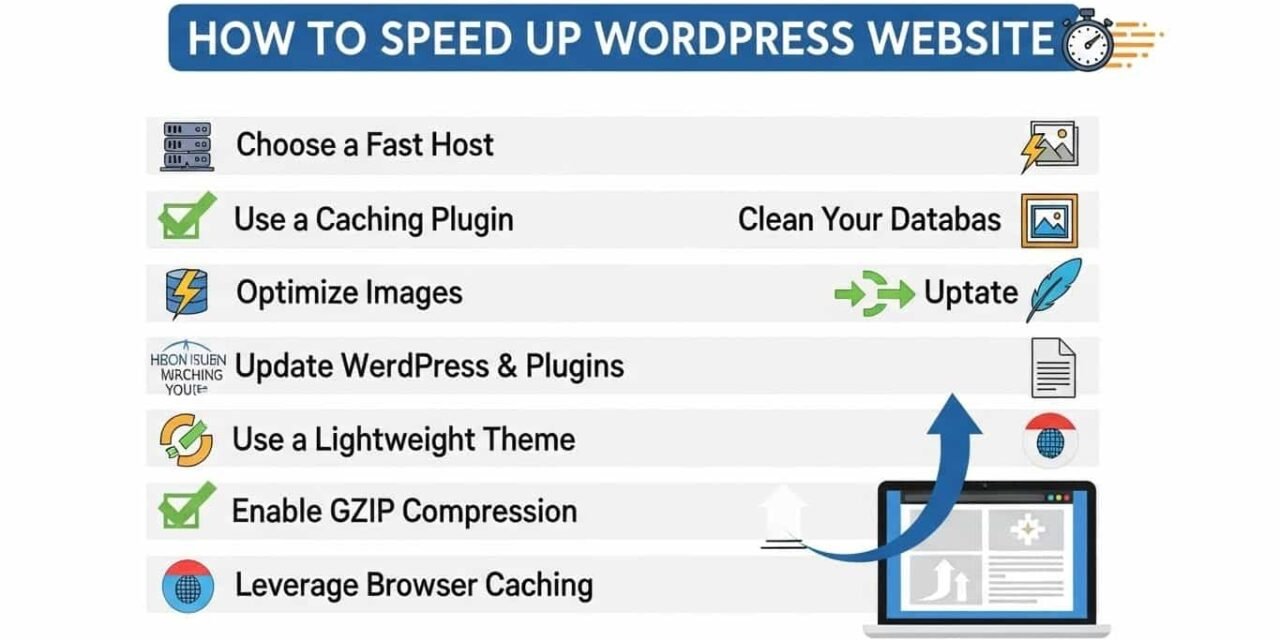
When it comes to speeding up your WordPress website, the first and most crucial step is selecting an appropriate hosting plan. The foundation of any website’s performance lies within its hosting environment. Therefore, a quality hosting provider can significantly influence both speed and reliability. There are primarily three types of hosting options available: shared hosting, Virtual Private Server (VPS) hosting, and dedicated hosting. Each of these has distinct characteristics that can impact your website’s performance.
Shared hosting is often the most affordable option, where multiple websites share a single server’s resources. While this can be suitable for low-traffic sites, it can lead to slow load times, especially if other websites on the same server experience traffic surges. In contrast, VPS hosting offers dedicated portions of server resources to your website, which improves performance and speed but may still be affected by neighboring sites on the same server.
For optimal WordPress speed optimization, it is advisable to consider managed WordPress hosting. These plans are tailored specifically for WordPress, providing features such as automatic updates, enhanced security measures, and server configurations optimized for WordPress performance. A managed hosting provider can also assist with essential tasks like image compression and optimizing the WordPress database, crucial elements for improving core web vitals.
When evaluating hosting providers, focus on their speed, uptime guarantees, and customer support options. Look for reviews or ask for recommendations to ensure you’re selecting a reputable company that prioritizes server performance. Choosing the right hosting plan sets the groundwork for your WordPress site, facilitating an overall enhancement in website speed and reliability. Ultimately, a robust hosting solution is integral to the effectiveness of your ongoing efforts to enhance your site’s performance.
Step 2: Use a Lightweight Theme
Choosing the right theme for your WordPress site is crucial for optimizing its performance. A lightweight theme not only enhances your website’s speed but also provides an efficient user experience. When selecting a theme, look for characteristics that promote improved WordPress performance, such as minimal design elements, limited features, and fast loading times.
A lightweight WordPress theme typically uses less code and fewer resources, which means quicker loading speeds. This is essential for anyone looking to speed up their WordPress website. Features such as unnecessary plugins, complex layouts, or heavy graphics can significantly slow down site performance. To ensure your theme aligns with your optimization goals, avoid themes that include excessive animations or intricate functionalities that most users may not require.
There are several popular themes designed for speed and efficiency that beginners can easily install. The Astra theme, for instance, is known for its lightweight nature and offers a range of customization options without compromising performance. Another great option is the GeneratePress theme, which is incredibly flexible while maintaining a focus on speed. Additionally, the Neve theme stands out for its minimal design and fast loading capabilities, making it a suitable choice for those looking to improve WordPress performance step by step.
Aside from choosing the right theme, it is equally important to consider ongoing maintenance to optimize WordPress database and ensure continued performance. Regularly updating your theme and plugins not only patches vulnerabilities but also contributes to keeping your site running efficiently. By implementing these recommendations and opting for a lightweight WordPress theme for speed, you are setting a solid foundation for enhancing your website’s overall performance.
Step 3: Implement Caching
Caching is an essential technique employed to speed up a WordPress website. It involves temporarily storing copies of files or data to facilitate quicker access. When a user visits your site, a cached version can be delivered instead of retrieving everything from the server again. This significantly reduces server load and accelerates page delivery, which is particularly beneficial for mobile users and those with slower internet connections.
The fundamental concept of caching is relatively straightforward. Instead of generating a webpage dynamically each time a visitor requests it, caching stores a static version that can be served on subsequent visits. This process enhances the overall performance of your website, contributing positively to the user experience. Moreover, implementing caching can improve your Core Web Vitals, optimizing your website’s ranking on search engines.
For beginners looking to speed up WordPress websites effectively, several plugins are available that simplify the caching process. Popular options include W3 Total Cache, WP Super Cache, and LiteSpeed Cache. Each of these plugins comes with a user-friendly interface that allows even novices to set up caching with minimal effort. To begin, install your chosen plugin directly from the WordPress dashboard under the ‘Plugins’ section and follow the guided setup instructions, which will often involve enabling page caching and choosing settings best suited for your site’s needs.
Additionally, selecting a lightweight WordPress theme can further enhance caching benefits. Themes that are less resource-intensive load faster and work harmoniously with caching methods. As part of a comprehensive WordPress performance checklist, caching is a critical step not only for improving load times but also for ensuring that your WordPress database remains optimized.
Step 4: Optimize Your Images
Image optimization plays a crucial role in speeding up your WordPress website. Large images can significantly slow down load times, which can negatively impact user experience and SEO rankings. To address this issue effectively, it is essential to implement several best practices for image optimization.
The first step in optimizing your images is to resize them. Ensure that the dimensions of your images align with their display size on the website. Uploading unnecessarily large images can hinder WordPress speed optimization efforts. Use tools like Adobe Photoshop, GIMP, or online services such as PicResize to resize images before uploading them to your site.
After resizing, image compression is the next vital step. Compression decreases the file size without noticeably affecting image quality. Several plugins are available for WordPress that can automate this process, including WP Smush and ShortPixel. These tools help you compress images and thus improve WordPress performance step by step. Implementing such plugins can help your site load faster, enhancing your overall site speed.
Additionally, consider enabling lazy loading for images. Lazy loading ensures that images are only loaded as users scroll down the page, rather than all at once when the page is loaded. This technique reduces initial load time and conserves bandwidth, further contributing to your website’s performance. You can enable lazy loading easily with plugins or by adding a few lines of code, improving core web vitals WordPress dramatically.
Using the right lightweight WordPress theme is also essential for image optimization. A theme designed for speed typically includes built-in functions for best practices in image display and handling. Ultimately, by incorporating these image optimization techniques, you can ensure that large images do not hinder your site’s performance, allowing you to create a seamless browsing experience for your visitors.
Step 5: Manage Your Plugins Wisely
Plugins are integral to enhancing the functionality of your WordPress website, but they can also significantly impact its speed and performance. It’s crucial to manage them wisely to ensure they contribute positively rather than detract from your site’s overall efficiency. One of the first steps in effective WordPress speed optimization is to assess the plugins currently in use. Identify any unused or unnecessary plugins and delete them. This will not only help streamline your website but also reduce the chances of potential conflicts that could slow down your site.
Additionally, regularly updating your active plugins is essential. Outdated plugins can lead to security vulnerabilities and performance issues, which ultimately hampers your site’s capability to respond swiftly to users. Each update often includes enhancements and fixes that can improve performance, contributing to your goal of how to speed up your WordPress site.
When selecting new plugins or reviewing existing ones, consider their impact on your site’s speed. Not all plugins are created equal—some can be resource-intensive. To improve WordPress performance step by step, opt for lightweight plugins and look for those that have received positive reviews regarding their performance impact. A useful practice is to consult a WordPress performance checklist, which can aid in evaluating plugins based on their speed and efficiency.
Furthermore, utilizing features like image compression WordPress and lazy load images WordPress can complement your plugin management efforts. These techniques help mitigate the impact of heavy media files while using plugins, ultimately contributing to better core web vitals WordPress scores. By adopting a balanced approach to plugin management, you can fully optimize your WordPress database, leading to a more responsive and faster website.
Step 6: Use a Content Delivery Network (CDN)
One essential step to speed up your WordPress website is implementing a Content Delivery Network (CDN). A CDN is a network of servers strategically distributed around the globe, working together to deliver your website’s content to users from the server closest to them. This geographic diversity minimizes the distance data travels, leading to lower latency and faster load times. Consequently, a well-integrated CDN serves as a crucial method for improving WordPress performance.
When choosing a CDN service, it is important to consider factors such as pricing, server locations, integration simplicity, and available features. Popular options include Cloudflare, StackPath, and Amazon CloudFront, each offering varying degrees of speed, security, and reliability. By analyzing your website’s needs, such as the type of content you serve and the geographical distribution of your visitors, you can select a CDN that aligns with your specific requirements.
Setting up a CDN for your WordPress site typically involves a few straightforward steps. Most CDN providers offer easy integration through plugins or configuration in your WordPress dashboard. For example, installing a plugin like Cloudflare or BunnyCDN can streamline the connection process. After successful configuration, all static assets, including images, stylesheets, and scripts, will be automatically served via the CDN, significantly reducing load times. Moreover, leveraging features such as image compression and lazy load images for WordPress provided by the CDN can further enhance performance.
In addition to speed improvement, employing a CDN can also bolster your site’s reliability. By distributing cached content across multiple servers, you can ensure consistent website availability, even during traffic spikes. Overall, using a CDN is an effective strategy to optimize your WordPress database and improve core web vitals, ultimately leading to an enhanced user experience.
Step 7: Clean Your Database
Database optimization is a crucial component in the overall process of improving WordPress performance. A well-maintained database can significantly enhance site speed and responsiveness, ensuring that you can effectively speed up your WordPress website. Over time, databases accumulate unnecessary data, which can lead to sluggish performance. This bloat often comes from old post revisions, spam comments, and transient options that are no longer in use.
One of the first steps to clean your WordPress database is to remove old revisions of your posts. WordPress saves every change made to a post as a revision, and while this feature can be helpful, it can also lead to a cluttered database. By limiting or deleting these revisions, you can reduce the size of your database and improve query performance. Additionally, spam comments often find their way into your database, adding yet another layer of unnecessary data that can slow your site down. Regularly checking for and deleting spam comments is an essential practice.
Transient options also contribute to the accumulation of data in your database. These are temporary options that can persist longer than necessary if not managed properly. Cleaning these up can help optimize WordPress database, contributing to improved core web vitals, which are critical metrics for performance. To assist in the cleaning process, various user-friendly database cleaning plugins are available. Plugins such as WP-Optimize and Advanced Database Cleaner offer straightforward interfaces allowing users to efficiently remove unwanted data without diving into the complexities of database management.
By following these database optimization techniques, you can greatly enhance your website’s speed and performance, ultimately providing a better user experience. Taking the initiative to clean your database reinforces the broader steps in your WordPress speed optimization strategy. This careful attention to detail can mitigate the question, “Why is my WordPress site slow?” and lead you towards a more efficient site.
Step 8: Minimize Heavy Scripts and CSS Files
One of the key factors contributing to slow WordPress performance is the presence of heavy scripts and cascading style sheets (CSS) files. These files are essential for your website’s functionality and design; however, when they are excessive or not optimized, they can significantly hinder your site’s loading speed. To effectively speed up your WordPress website, it is crucial to identify and minimize these resources.
Start by assessing the scripts and CSS files you currently have in use. Tools such as Google PageSpeed Insights and GTmetrix can provide valuable insights into the size and impact of each file on your site’s performance. Focus particularly on scripts that are loaded from third-party sources, as these can often be bulky and inefficient. Remove any unnecessary scripts or styles that do not contribute to your site’s core functionality or design.
Once you have identified the heavy scripts and CSS files, consider merging them to reduce the number of requests made to the server. Many plugins are available that simplify this process, such as Autoptimize or WP Rocket. These plugins allow you to aggregate your CSS and JS files into a single file, which decreases load times and overall server requests. Additionally, using minification techniques within these plugins can significantly lessen the file sizes by removing whitespace and comments.
Furthermore, implementing a lightweight WordPress theme can improve loading times by ensuring only the necessary scripts and styles are included. This is essential for optimizing your user experience and enhancing core web vitals. By diligently streamlining your scripts and CSS, you’ll not only improve WordPress performance step by step but also provide a more efficient browsing experience for your visitors.
Step 9: Test and Monitor Your Site Speed
Testing and monitoring your site speed is a critical step in the process of speeding up your WordPress website. Regular assessments can help ensure that the enhancements implemented effectively contribute to overall performance. Utilizing various tools available online can make this process seamless and intuitive.
One of the most widely used tools is Google PageSpeed Insights. It provides a detailed analysis of your website’s performance, offering valuable suggestions on how to improve WordPress performance step by step. Once you enter your site URL, the tool scores your site based on its loading speed and usability for both desktop and mobile platforms, highlighting areas where improvements are necessary.
Another excellent option is GTmetrix. This tool not only analyzes the speed of your pages but also presents you a comprehensive report on what is causing delays, such as unoptimized images or excessive server response times. It is advisable to pay attention to the WordPress performance checklist GTmetrix provides, as it outlines specific actions to take for ongoing optimization.
After implementing changes such as image compression WordPress, enabling lazy load images WordPress, or adjusting your WordPress database optimization, it is essential to re-test your site. By monitoring speed changes consistently, you can maintain a proactive approach to your site’s performance. Additionally, keeping track of core web vitals WordPress is vital since these metrics can impact search engine rankings.
Fostering a habit of performance monitoring allows you to identify potential issues before they affect your users. Consider setting a schedule to check the speed of your site regularly. This practice can lead to better management of your website’s overall functionality, ensuring rapid response times and high user satisfaction.